Select sheets for plotting by revision, schedule, or parameter.
Plot by Revision started with a post on the Autodesk Idea forums. Several people were asking for a better way to build a print set from revisions. We needed the same thing, built what most of them were asking for, and published it a few months later.
The add-in lets you find sheets based on revisions, sheet schedules, or custom parameters and stage them for Revit's in-session print selection. Instead of going through the sheet list one by one, check the revisions you need, review the staged sheets, then apply when you're ready.
It works with Revit's in-session print selection only. It never creates or modifies saved View/Sheet Sets. Your project stays clean.
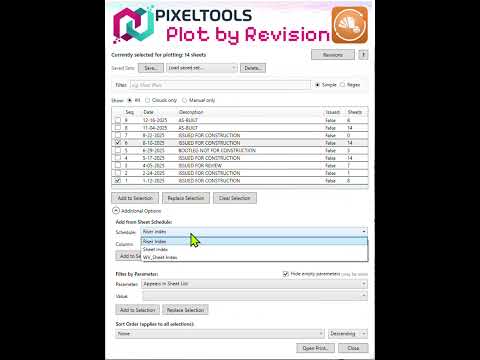
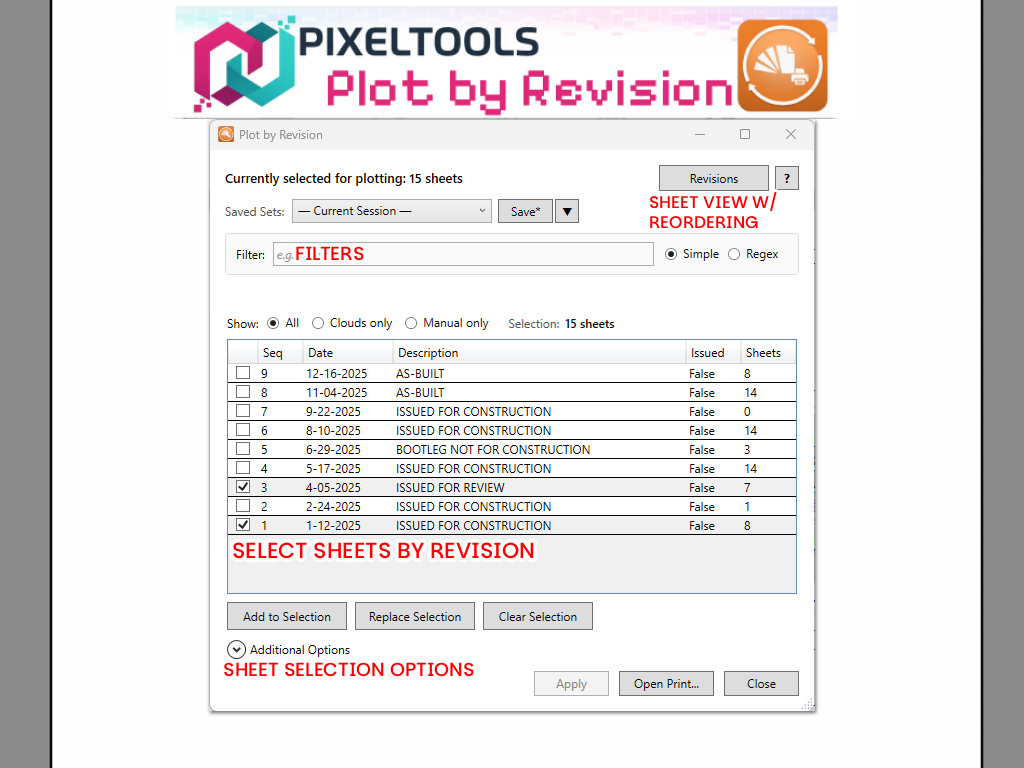
See all revisions in your project with sheet counts. Check the revisions you need and stage their sheets for printing. The list shows sequence numbers, dates, descriptions, and issued status.
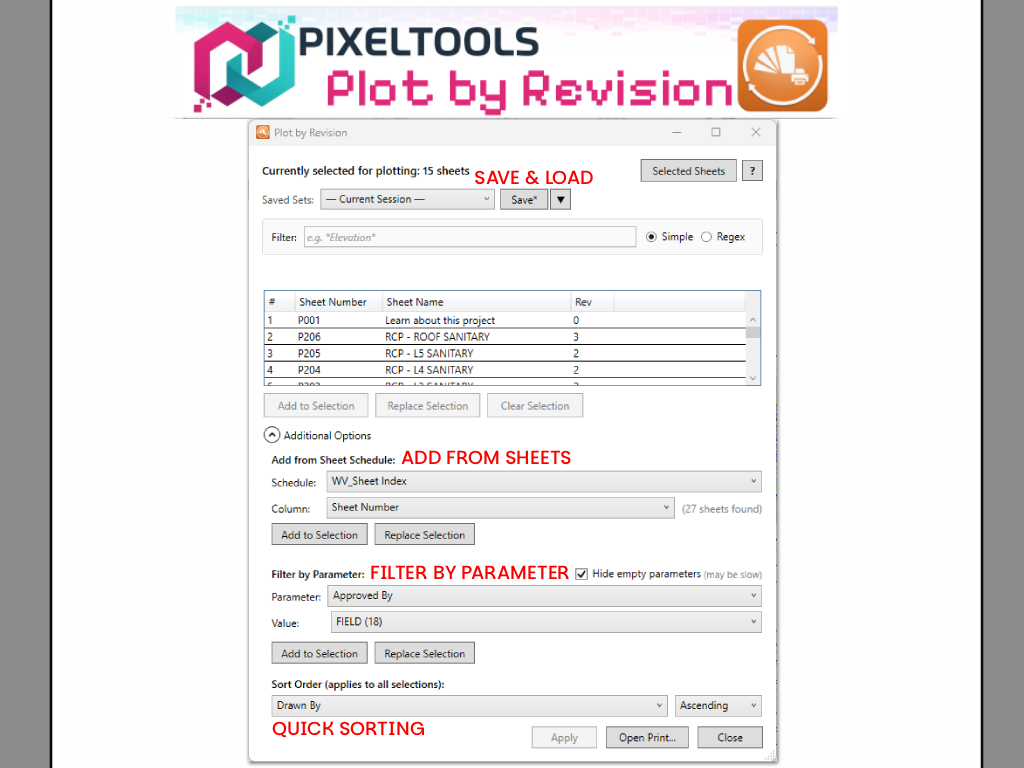
Pull sheet numbers directly from any sheet schedule column. Perfect for a filtered submittal package. Auto-detects the sheet number column.
Filter sheets by parameter values: discipline, phase, package, area, or custom parameters you've set up. Select a parameter, pick a value, and stage the matching sheets.
Narrow the revision list instantly by typing a sheet number or name. Useful when you only want sheets from a specific area or discipline within a revision.
Sort selected sheets by any parameter before printing. Natural sort handles sheet numbers correctly (A2 before A10). Your sort preference is remembered between sessions.
Works entirely with the in-session print selection. Never creates, modifies, or deletes saved View/Sheet Sets. Open the Print dialog when everything is set and you're done.
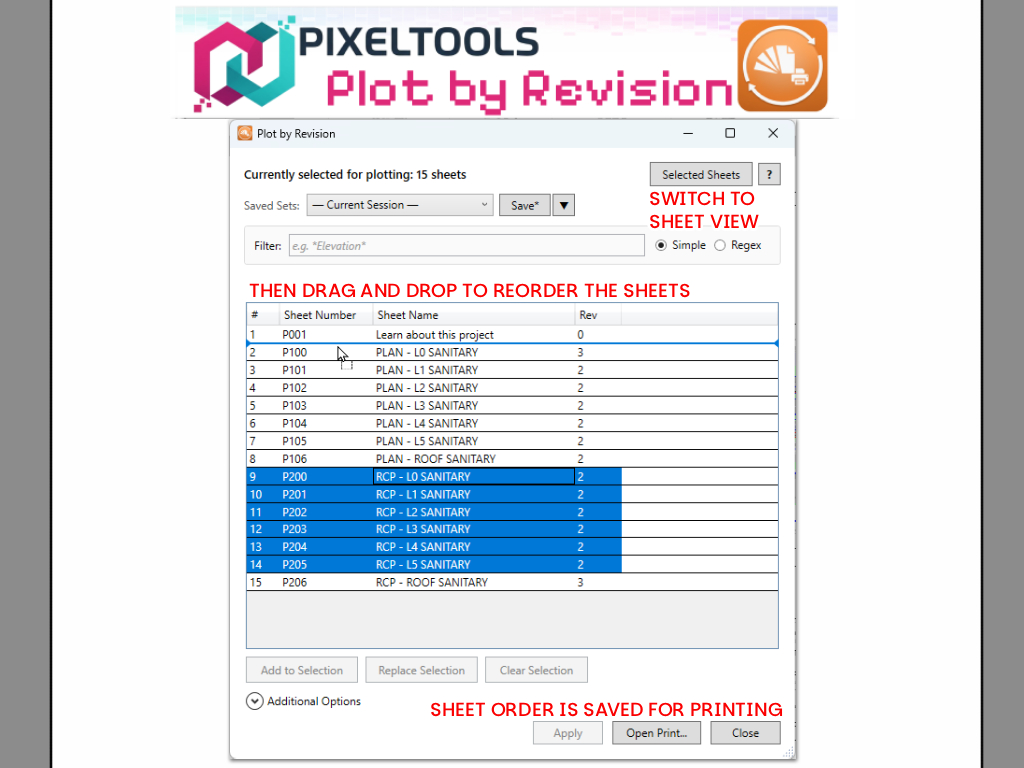
Reorder selected sheets by dragging them in the Selected Sheets view. Multi-select supported, so you can move entire groups at once. Column order is also customizable and persisted.
Full localization in English, German, Spanish, French, Italian, Portuguese (Brazil), Japanese, Korean, and Chinese. The interface automatically matches your Revit language setting.
Verified shortcuts and mouse actions: